This guide shows you how to use Voicemod on PC, Mac, and consoles. Set it up in your favorite games, chat apps, video calls and platforms like WhatsApp, learn how it works with Voicemod Key on Xbox, PlayStation, and Switch, and explore everything you need to start transforming your voice in real time — effortlessly.
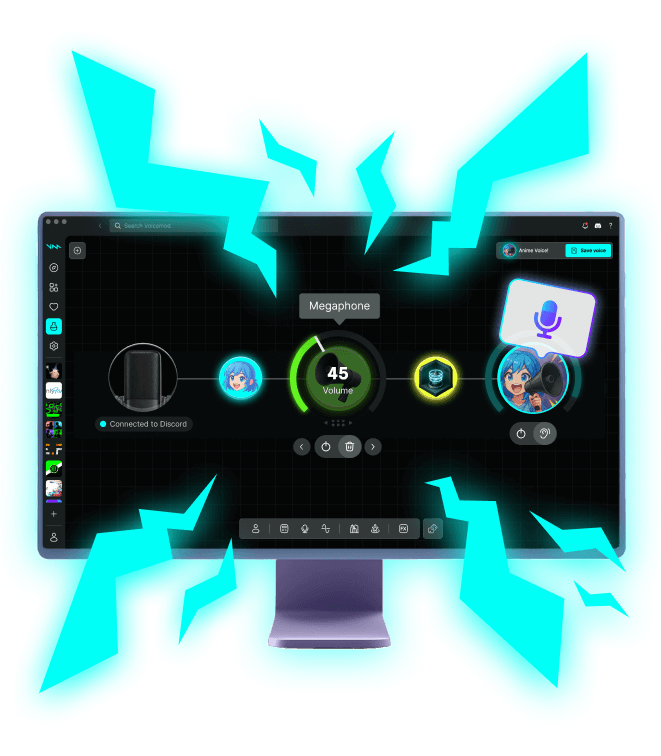
How to use Voicemod: Complete Guide
Quick guide for PC: get started in seconds
Set up Voicemod step by step on PC (Windows & Mac)
Follow these steps to install and set up the voice changer on a PC:
-
Download and install Voicemod
This is the easiest part—just download our installer and follow the instructions step by step.
-
Open Voicemod
If it’s your first time, the app will guide you through an initial setup wizard. If not, you can open the Settings tab to configure audio devices. Be sure to close other audio programs, such as Discord, Skype, games…
-
Configure your mic & headphones
In Voicemod’s audio settings (or during the first-time setup), choose your microphone as the input device and your headphones as the output device. For the best experience, use it on your headphones instead of speakers.
How to use Voicemod in your favourite games
See how to get Voicemod running in Discord, Fortnite, Roblox, and more.
How to use a voice changer
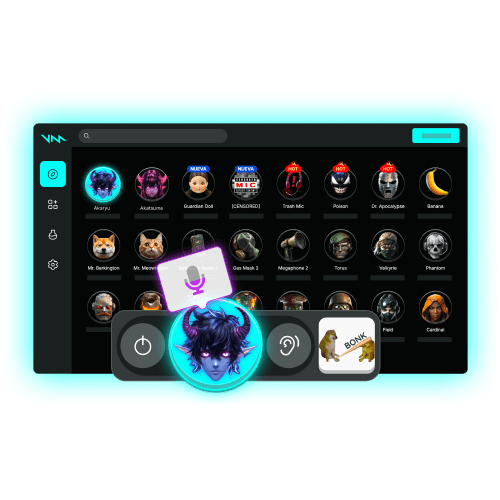
Using a voice changer in Voicemod is simple: just open the Voices tab and pick any voice. You can activate the Hear Myself button to hear the transformation instantly as you speak. You can also configure and tweak each effect to fine-tune pitch, tone, or special filters.
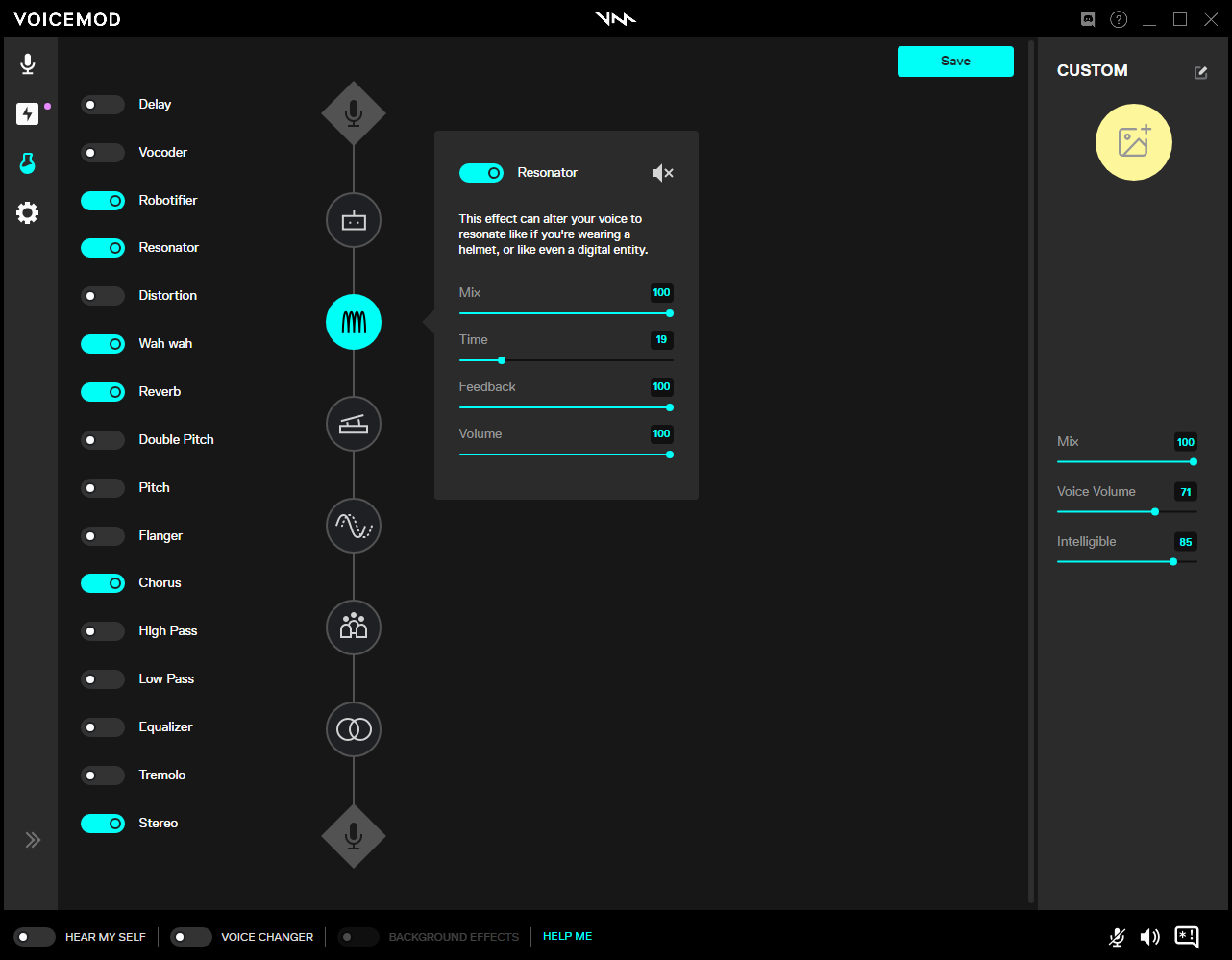
Create custom voices in Voicelab
Voicelab lets you design completely custom voice effects using dozens of audio modules. Adjust pitch, reverb, distortion, and advanced filters to create something totally unique. Start from scratch or remix an existing voice. Save and reuse your creations anytime — or share them with the community.
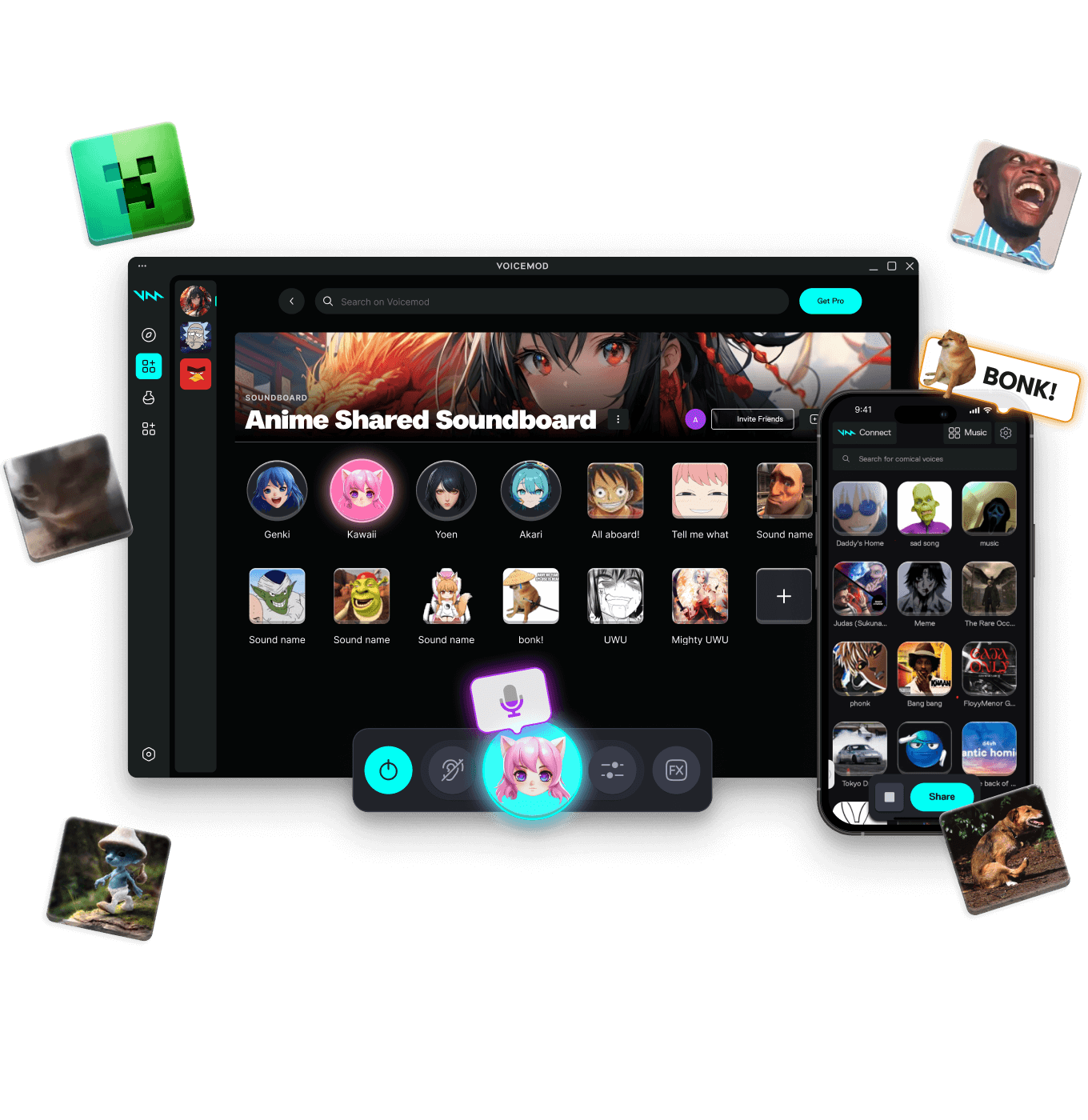
Set up and customize your Soundboard
The Soundboard lets you organize your sounds into customizable profiles. Free users can create one soundboard with unlimited sound slots, while PRO users can create multiple soundboards tailored to different needs — for example, a separate soundboard for each game. Each profile keeps your sounds ready for quick reactions, whether you’re gaming, streaming, or chatting.
Set up Voicemod step by step on a console
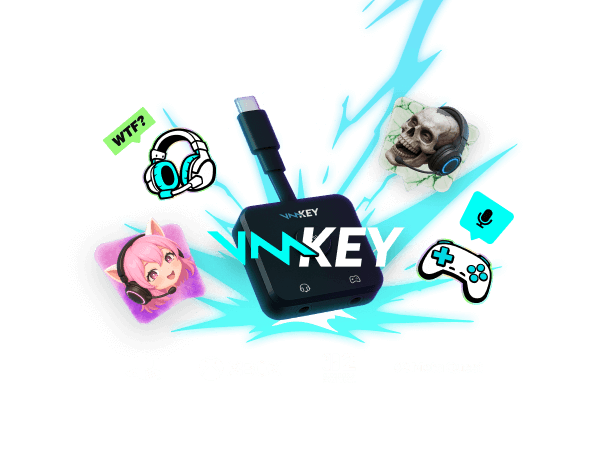
With Voicemod Key and your smartphone, you can enjoy the real-time voice changer and soundboard on your console. Learn more about Voicemod Key.
- Download and install Voicemod in you smarthpone
-
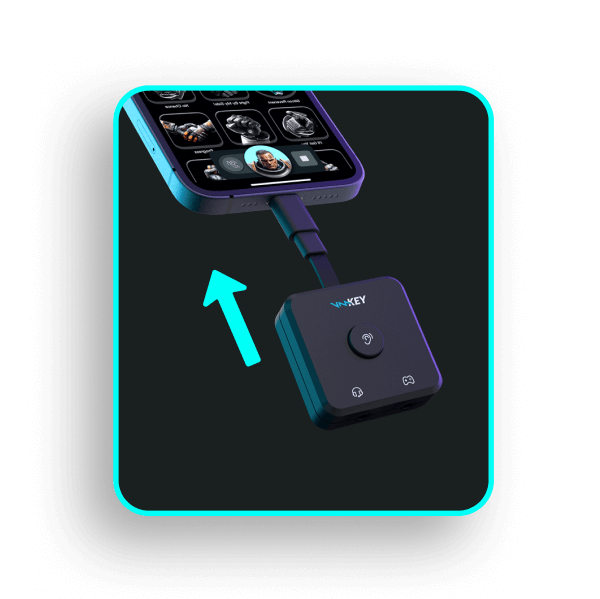
Connect Voicemod Key to your phone
Plug Voicemod Key into your smartphone and fire up the Voicemod app. You’ll see the connection confirmation—leave the app running in the background.
-
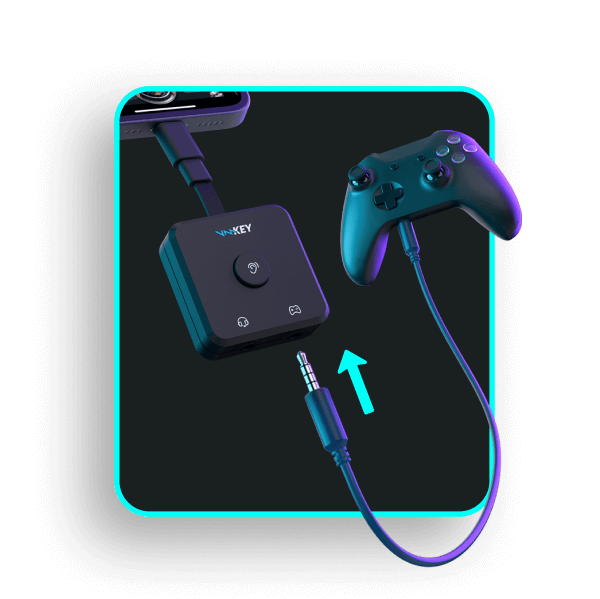
Link it to your console
Use the included 3.5 mm TRRS cable to connect Voicemod Key Controller jack to your headset input. Got a USB-C setup? Just add a USB-C ↔ 3.5 mm adapter and you’re good to go.
-
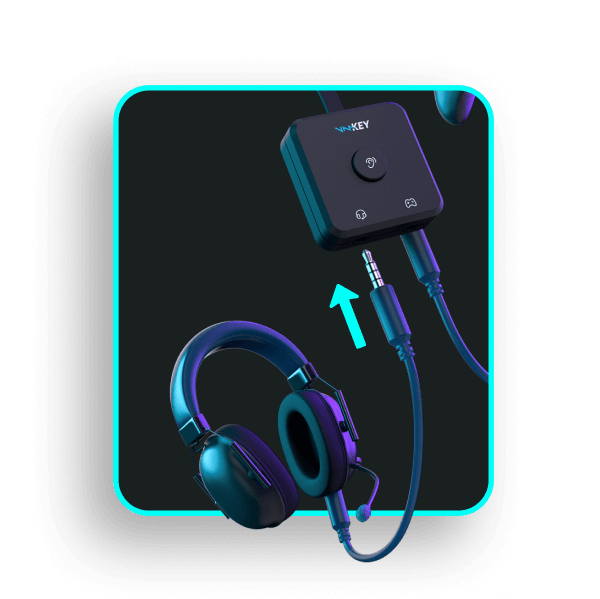
Plug in your headset
Connect your headphones (with mic) to Voicemod Key Headset jack. From now on, your new voice goes straight into your console like a regular headset mic.
How to use Voicemod in videocalls and whatsapp web
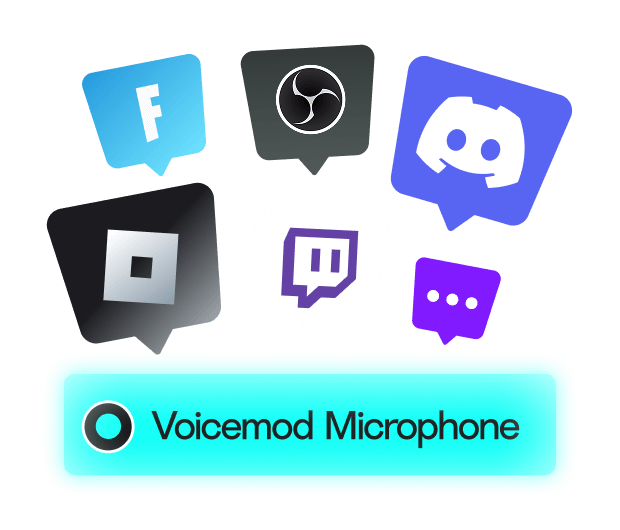
Using Voicemod in your video calls is easy. Just select Voicemod Virtual Microphone as your input device in platforms like Zoom, Google Meet, Microsoft Teams, or even WhatsApp Web. Once selected, any voice effect or sound you trigger in Voicemod will be heard in your call instantly.
More questions? Learn more about setting up Voicemod
Still have questions or need extra help? Visit our Support page for more guides, troubleshooting steps, and tips to get the most out of Voicemod.

Feedback & Support
Works wherever you hang out online.
Not only in voice apps like Discord, but also in-game voice chats.